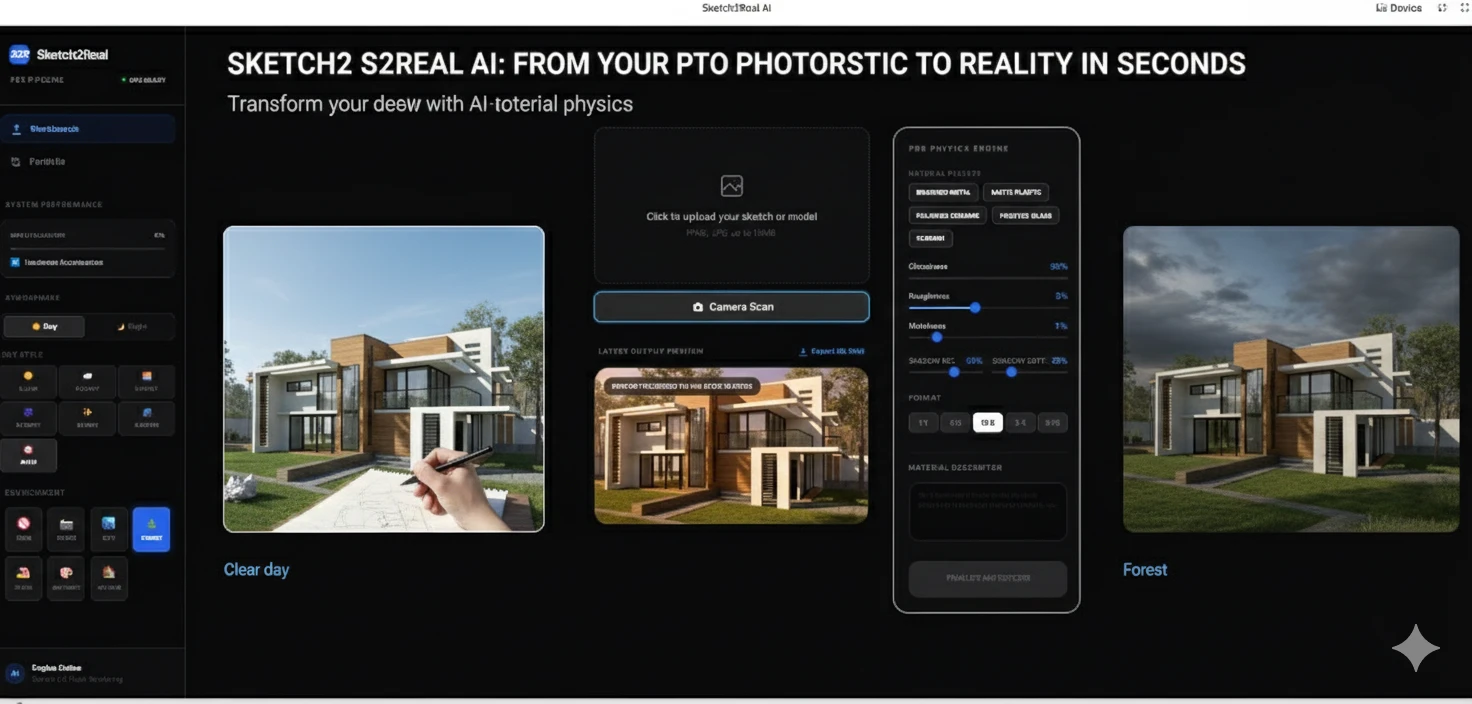
Photorealistic Architecture with Sketch2Real AI
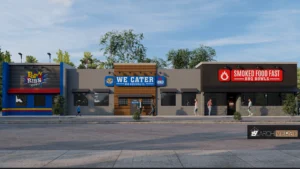
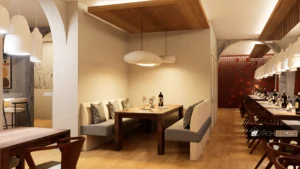
Have you ever drawn a quick architectural concept on a napkin and wished you could see it as a finished building instantly? With Sketch2Real AI, the gap between a rough idea and a professional Realistic render has officially closed.
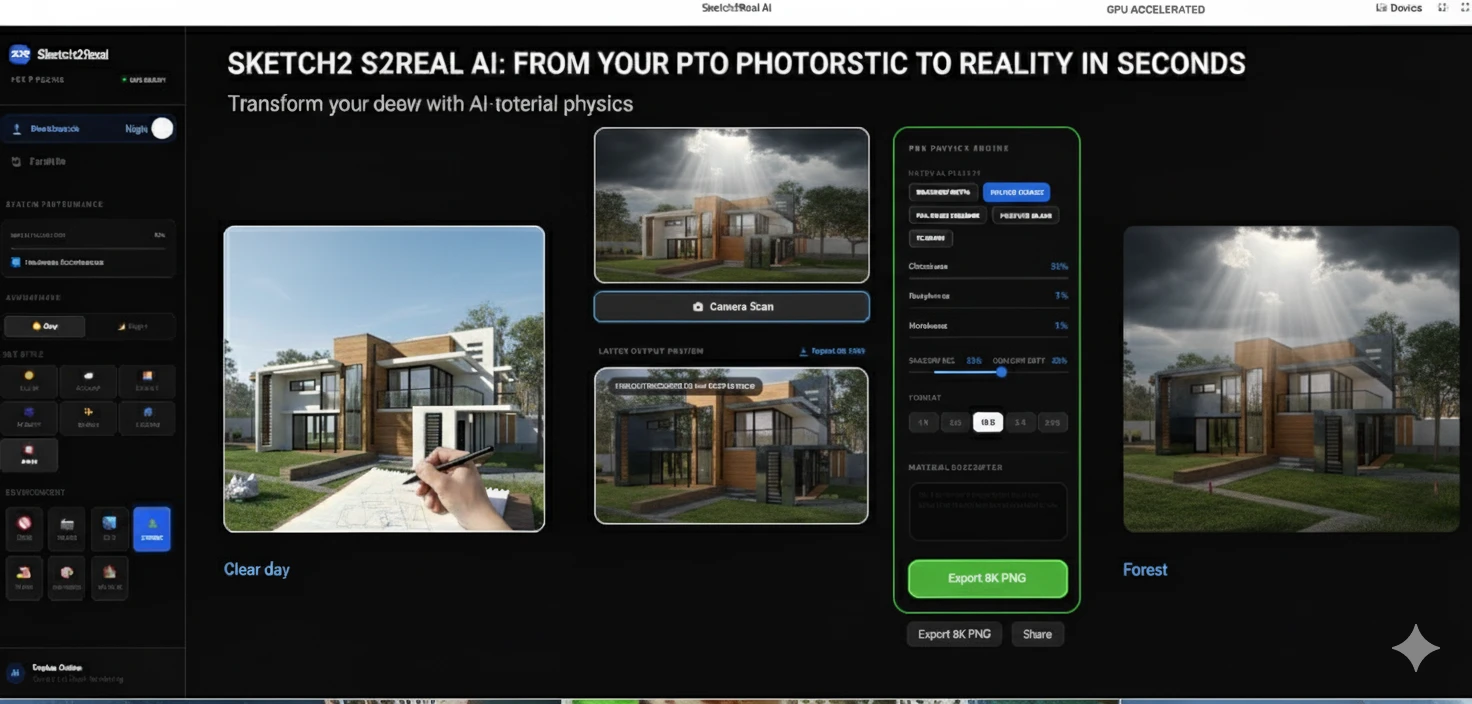
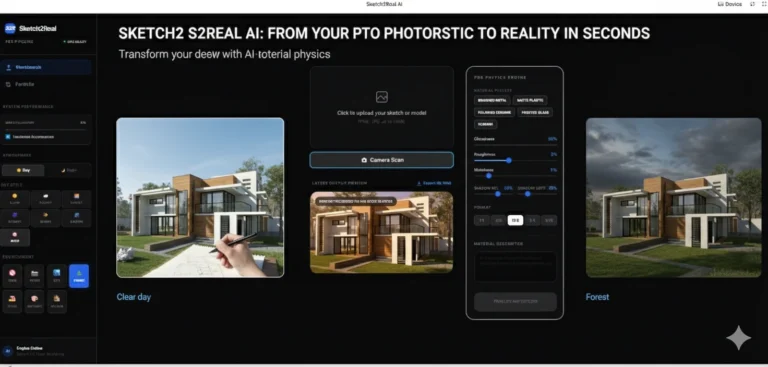
Our new workbench allows architects, designers, and hobbyists to transform 2D sketches into hyper-realistic 3D environments using GPU-accelerated AI.
What is Sketch2Real AI?
Sketch2Real is a professional-grade rendering pipeline that uses hardware acceleration to interpret sketches and apply real-world material physics. Whether you are designing a modern villa or a minimalist interior, the tool handles the lighting, shadows, and textures for you.
How to Use the Sketch2Real Workbench
Getting started is simple. Follow this step-by-step guide to create your first render.
Step 1: Upload Your Vision
In the center of the Workbench, you have two options to begin:
- Upload: Drag and drop your PNG or JPG sketch (up to 10MB).
- Camera Scan: Use your device’s camera to snap a photo of a physical drawing directly into the engine.

Step 2: Define Your Environment (Atmosphere)
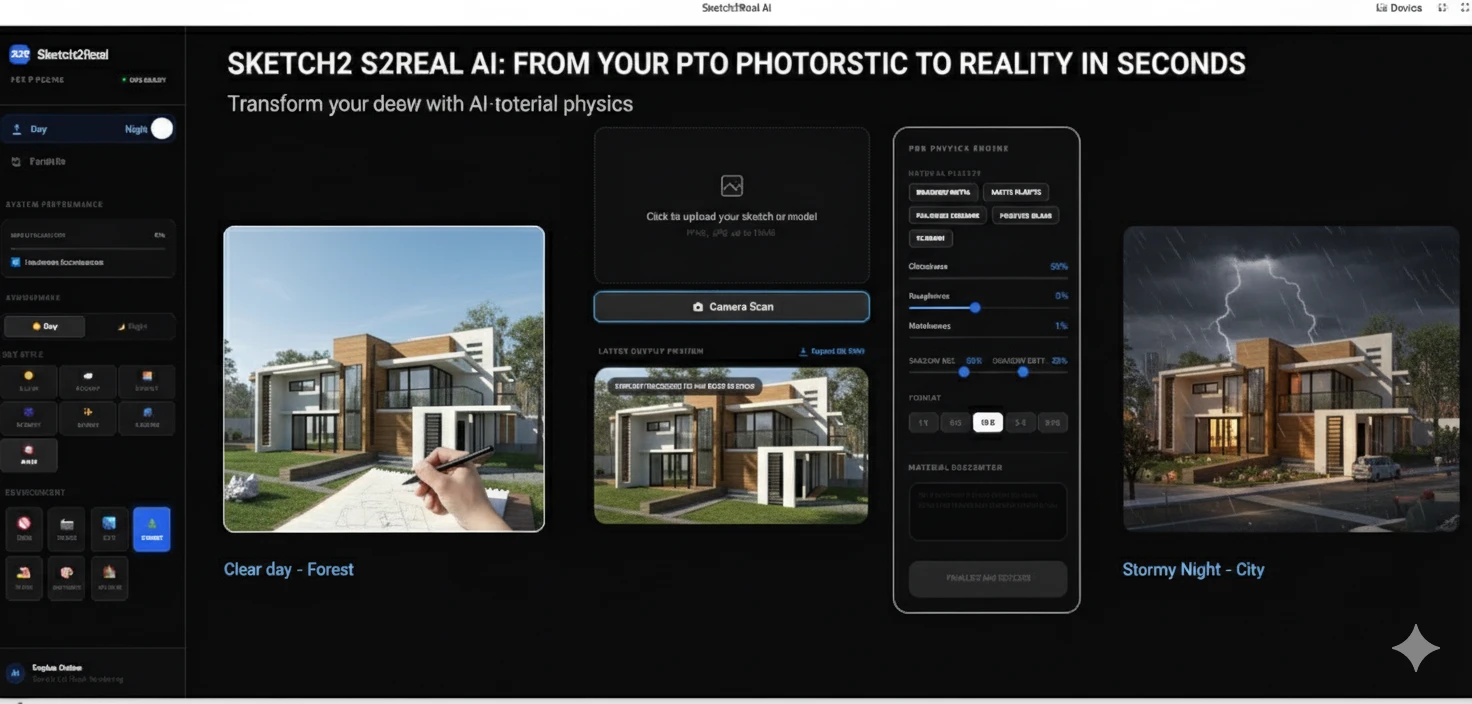
On the left sidebar, you can control the “vibe” of your project:
- Time of Day: Toggle between Day and Night modes.
- Sky Style: Choose from Clear, Cloudy, Sunset, Stormy, Starry, or Aurora.
- Environment Location: Place your building in a Forest, City, Studio, or even a Beach.
Step 3: Refine Material Physics
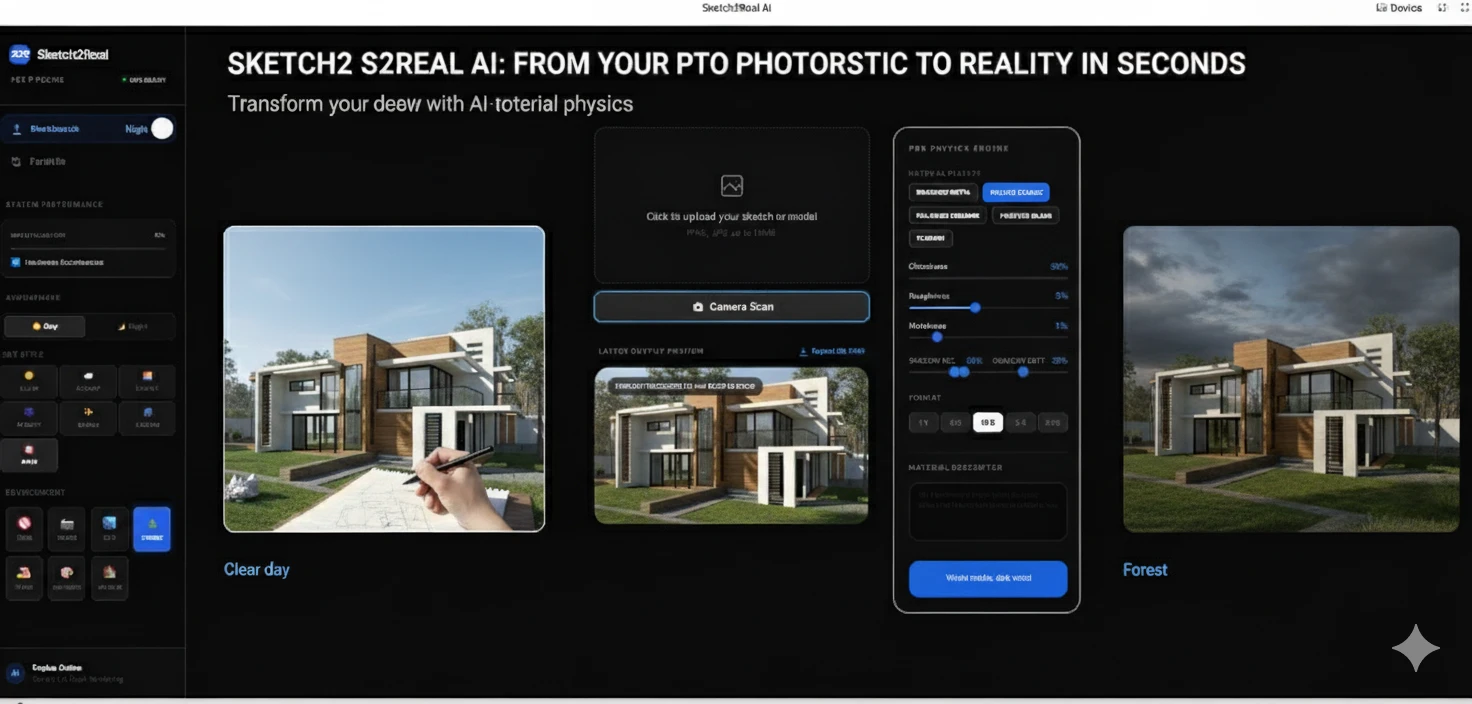
This is where the magic happens. On the right-hand panel, you can fine-tune how light interacts with your building:
- Presets: Instantly apply textures like Brushed Metal, Matte Plastic, Polished Ceramic, or Frosted Glass.
- Granular Control: Use the sliders to adjust Glossiness, Roughness, Metalness, and Shadow Intensity.
Step 4: Finalize and Export
Select your desired aspect ratio (1:1, 16:9, etc.) and click “Finalize HW Render.” The AI will process the image using our cloud-based GPU accelerators. Once finished, you can hit “Export 8K PNG” to get a high-resolution file ready for client presentations or social media.
Why Choose Sketch2Real?
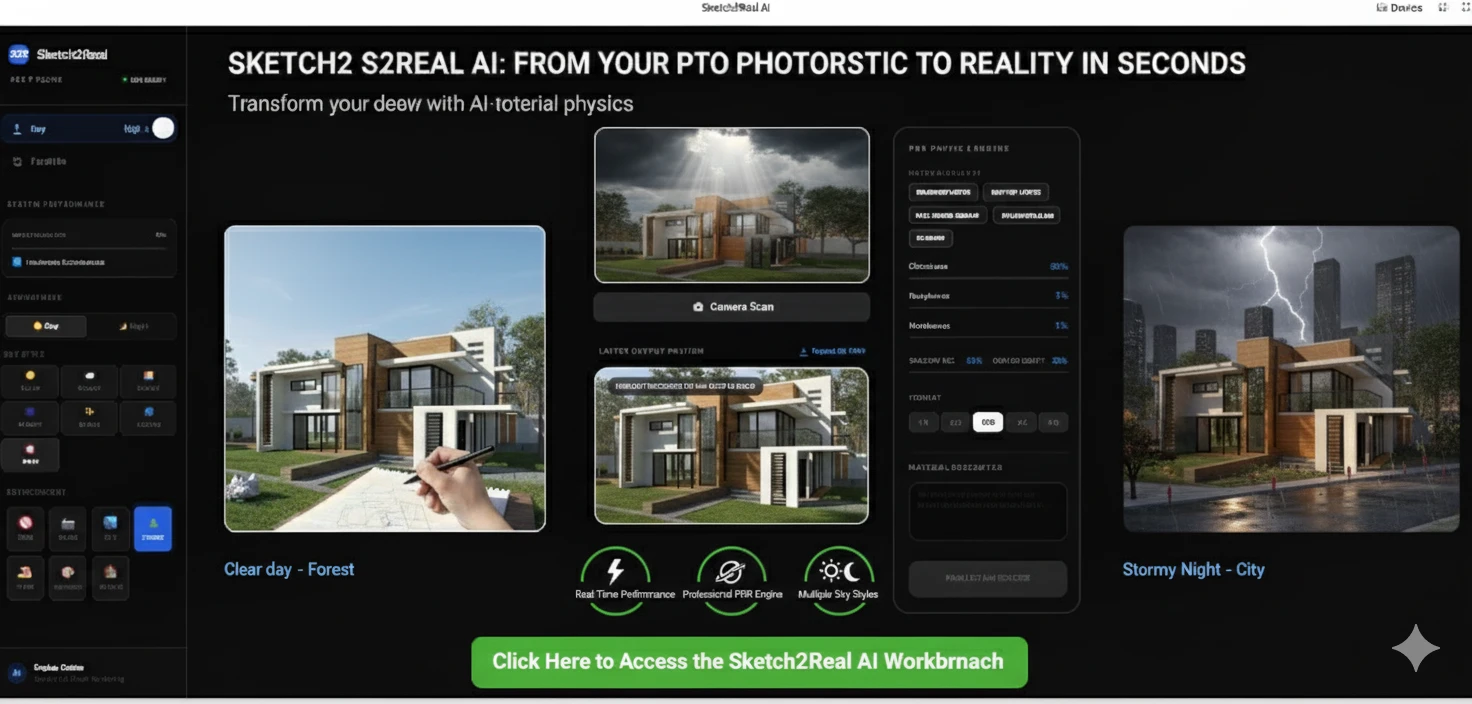
- Real-Time Performance: Our UI is GPU-accelerated, meaning you see your changes with zero lag.
- Professional PBR Engine: We use Physically Based Rendering (PBR) to ensure that shadows and reflections look 100% natural.
- Multiple Sky Styles: From a calm sunset to a dramatic stormy sky, you can test your design in every possible lighting condition.
Ready to start building?
[Click Here to Access the Sketch2Real AI Workbench]
Tips for Best Results:
- Clean Lines: The clearer your sketch lines are, the more accurate the AI will be in defining edges.
- Experiment with Roughness: If your building looks too “shiny” or fake, try increasing the Roughness slider to 40-50% for a more natural concrete or wood feel.
Use Material Descriptors: Use the text box at the bottom right to describe specific materials like “red brick” or “weathered oak” to guide the AI.


1 thought on “Sketch2Real AI: Transform Architectural Sketches into Realistic Renders”
This guide explained everything clearly.